DMS User Guide
Desk Management System — Accreditation Edition
Key changes in V9.2: Added Online Pre-registration, Global Master List, Verification IDs (Rxxxx) and custom numeric keypad for kiosks.
Table of Contents
⚙️ 1. System Configuration
Configuring Workflow & Stations:
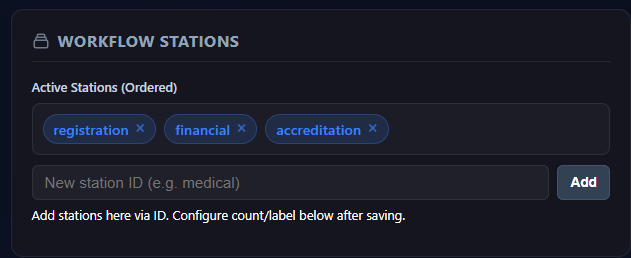
Settings — Workflow Stations : chips de stations ordonnées + champ d'ajout.
registration,
financial, cards).
Customization:
- Upload event logos and notification sounds.
- Toggle interface options (flags, ticker, calling overlay, etc.).
🚪 2. Arrival & Check-In
The Arrivals page is the first point of contact for incoming delegations. It combines a registration form with a Master List of all pre-imported data.
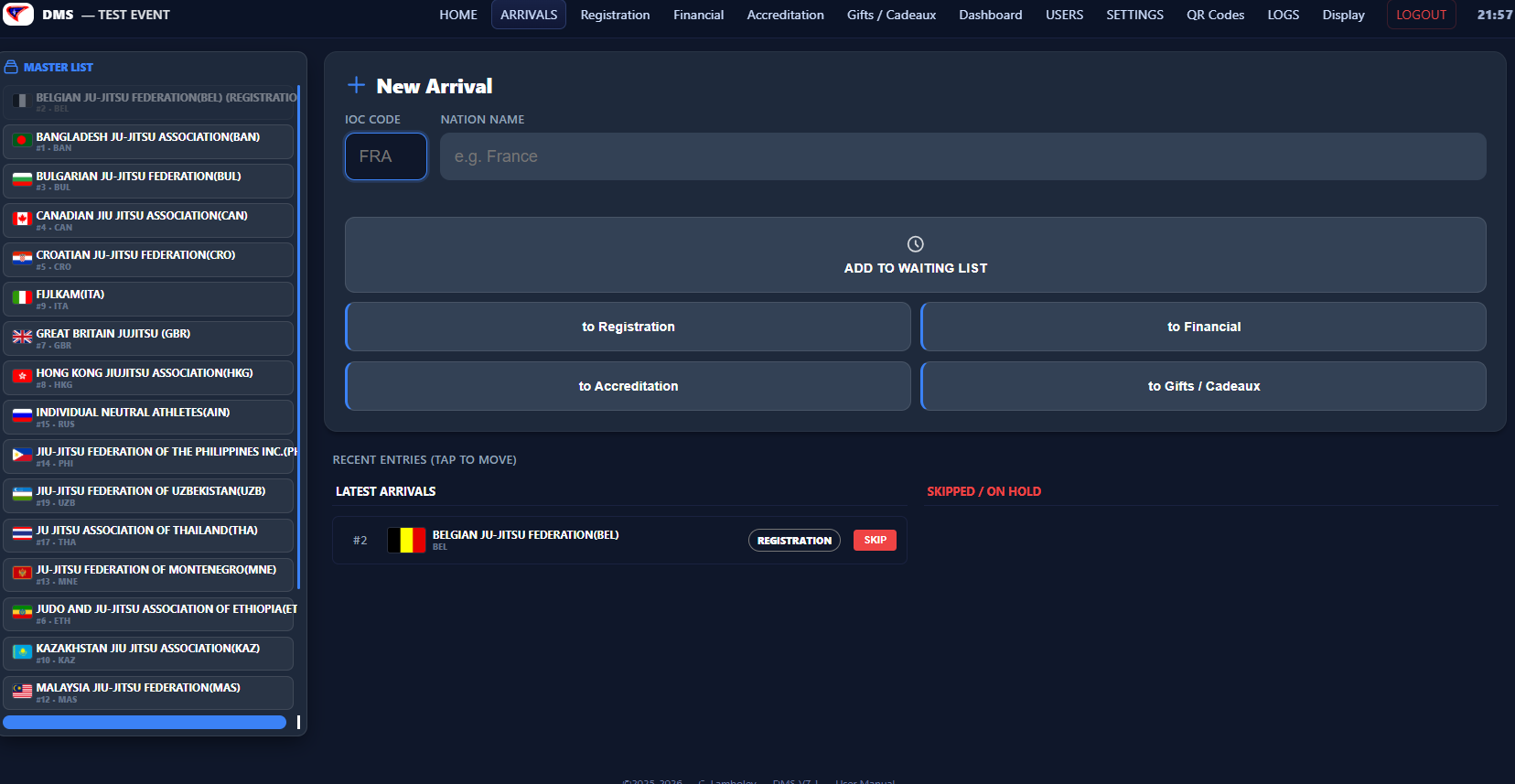
Page Arrivals — Master List (left) for quick check-in, New Arrival form (center) for manual entry or filtering.
🖥️ 3. Desk Operations
For operators at individual stations (Registration, Finance, Cards, etc.):
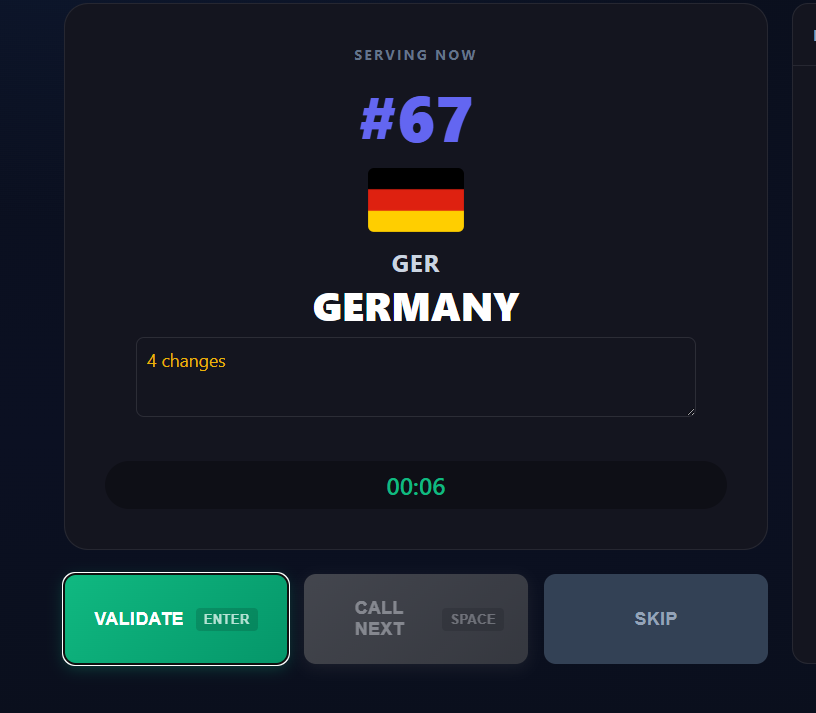
Page Desk Operator — sélecteur de bureau, délégation en cours (drapeau, nom, ticket), boutons VALIDATE / CALL NEXT / SKIP.
/financial) and select your Desk Number
from the dropdown.Setting a Desk Inactive
When a desk is temporarily unavailable (break, absence, etc.):
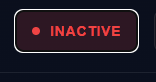
Page Desk Operator — bouton rouge "Inactive Desk", liste de file d'attente grisée, boutons d'action désactivés.
📊 4. Desk Status Panel
The Desk Status Panel appears at the top of the Dashboard, above the main kanban. It gives a real-time overview of every desk in every station.

Dashboard — panneau Desk Status : colonnes par station avec cartes Active (vert), Vacant (gris) et Inactive (rouge) visibles côte à côte.
Status Types
Toggling from the Dashboard
/api/desk-open).
Header Badge
Each station column shows a green number in its header — this is the count of currently Active desks (serving a delegation at that moment).
📺 5. Public Display
The Display page (/display) is shown on a large screen visible to waiting
delegations.
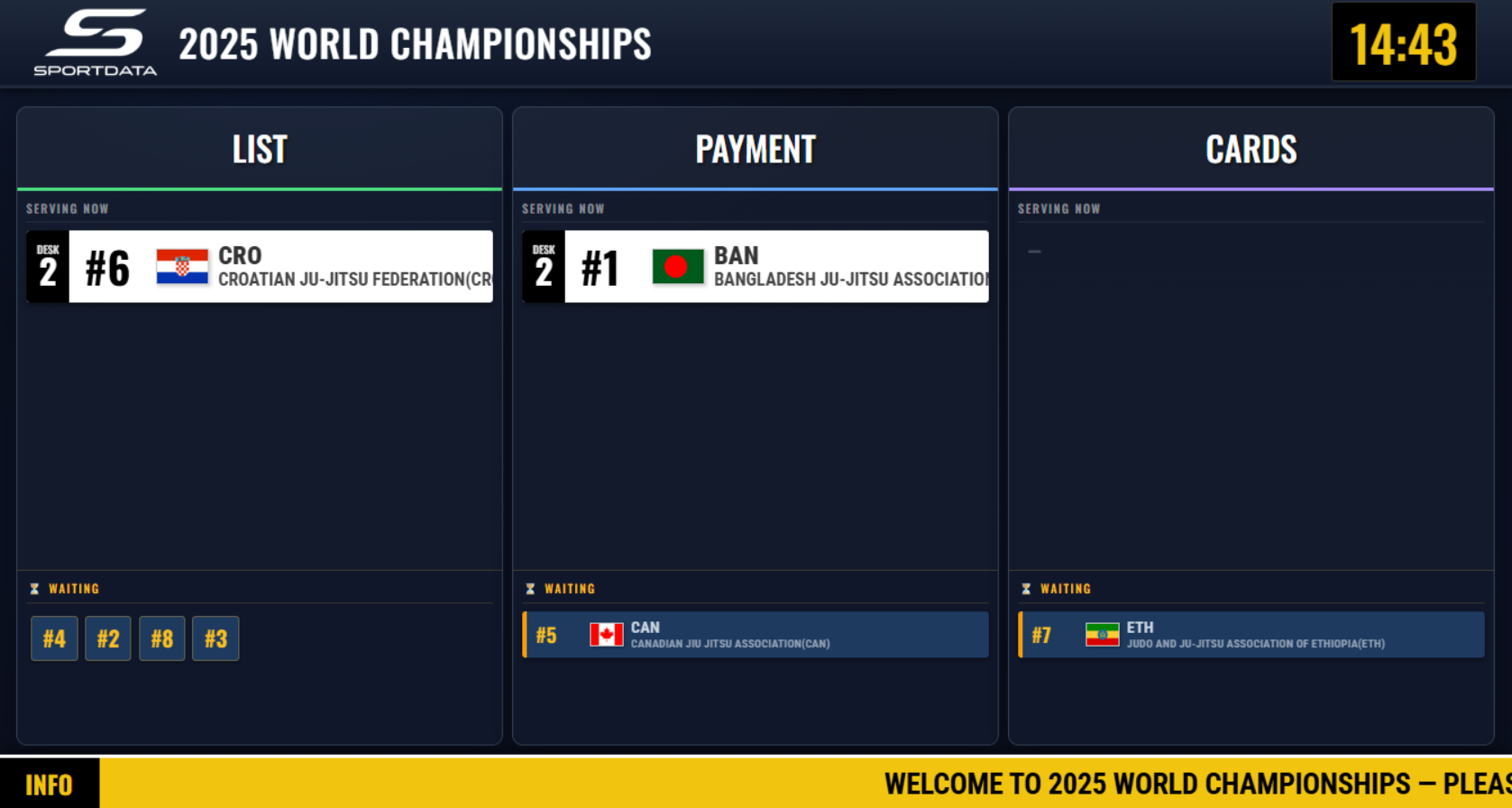
Page Display — vue plein écran : colonnes de stations, cartes avec drapeaux, ticker en bas. L'overlay d'appel peut être visible.
- Columns automatically adjust to fill the screen width.
- Called delegations appear with a large overlay alert and an audible "Ding".
- Station columns show active desks with flag, IOC code and ticket number.
- A scrolling ticker at the bottom shows general information text (configurable in Settings).
🗂️ 6. Dashboard
The Dashboard (/dashboard) is the supervisor overview. It shows three main
sections:
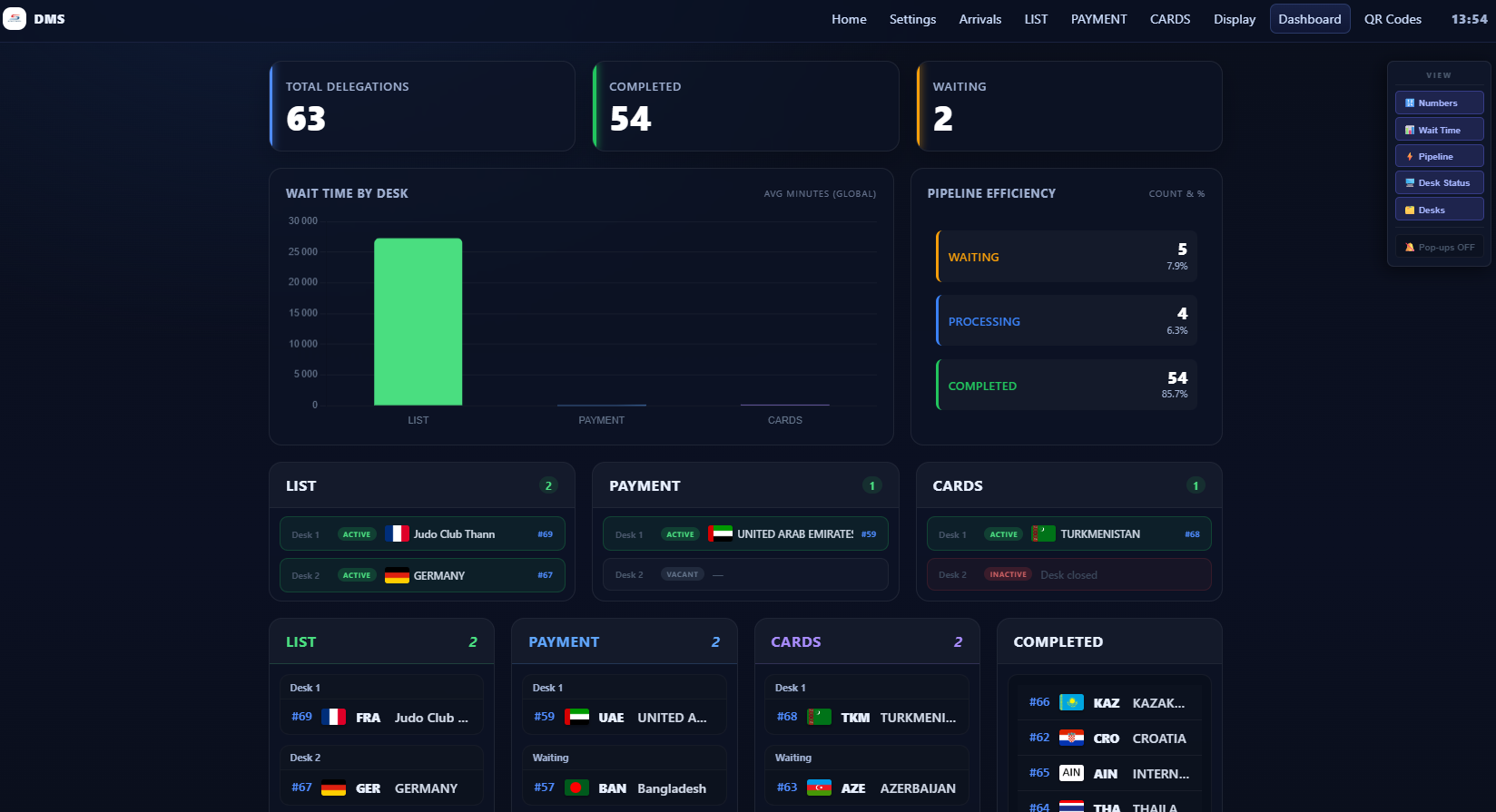
Dashboard — vue complète : ligne stats, graphiques, Desk Status panel et kanban principal visibles sur un seul écran.
- Stats Row: Total delegations, completed, and currently waiting.
- Charts Row: Hourly arrival bar chart and pipeline efficiency stats.
- Desk Status Panel: Kanban-style columns per station with live desk statuses.
- Main Kanban: Full card view of each delegation per station, grouped by desk.
Toggle Sections
Use the floating toolbar (top-left) to show/hide individual sections (Stats, Charts, Desk Status, Kanban). The preference is saved in your browser.
💾 7. Data Management
Import: Use the "Import Data" section in Settings to upload a CSV of pre-registered delegations.
QR Codes: Go to /qrcodes to generate and print QR codes linking each desk
URL for quick access on tablets.
DMS V9.2 · ©2026 Sportdata Gmbh & Co KG, developed by C. Lamboley